Outputs Overview
Outputs are the destinations where Relaye sends your notifications. They define where and how your notifications will be delivered to users or other systems.
What Are Outputs?
In Relaye, an output is a configured destination that receives formatted notifications from your inputs. Each output has specific configuration requirements based on its type (Telegram, Slack, etc.) and delivers notifications in a format appropriate for that platform.
Available Output Types
Relaye supports several output types to accommodate different notification preferences:
Telegram
Send notifications to Telegram users, groups, or channels. This is one of the most popular output types due to Telegram's rich formatting support and mobile notifications.
Learn more about Telegram outputs
Slack
Send notifications to Slack channels or users. Ideal for team collaboration and workspace-based notifications.
Learn more about Slack outputs
Discord
Send notifications to Discord channels via webhooks. Perfect for community-oriented notifications or gaming-related alerts.
Learn more about Discord outputs
Email (AWS SES)
Send email notifications via Amazon Simple Email Service (SES). Useful when you need formal or detailed notifications.
Learn more about Email outputs
Generic Webhook
Forward notifications to another HTTP endpoint. This allows you to chain Relaye with other systems or custom applications.
Learn more about Generic Webhook outputs
Creating an Output
To create a new output:
- Navigate to the Outputs section in your dashboard
- Click New Output
- Select the output type that matches your notification preference
- Configure the output with the required credentials and settings
- Give your output a descriptive name
- Save
Output Settings
Each output type has different configuration requirements, but most include:
Name
Choose a descriptive name that helps you identify the purpose of this output. Good names often include the destination channel and purpose (e.g., "Team Alerts Telegram" or "Critical Issues Slack").
Type-Specific Configuration
Depending on the output type, you'll need to provide specific configuration:
- Telegram: Bot token and chat ID
- Slack: Webhook URL and channel
- Discord: Webhook URL
- Email: AWS SES credentials and recipient addresses
- Webhook: Destination URL and optional headers
Managing Outputs
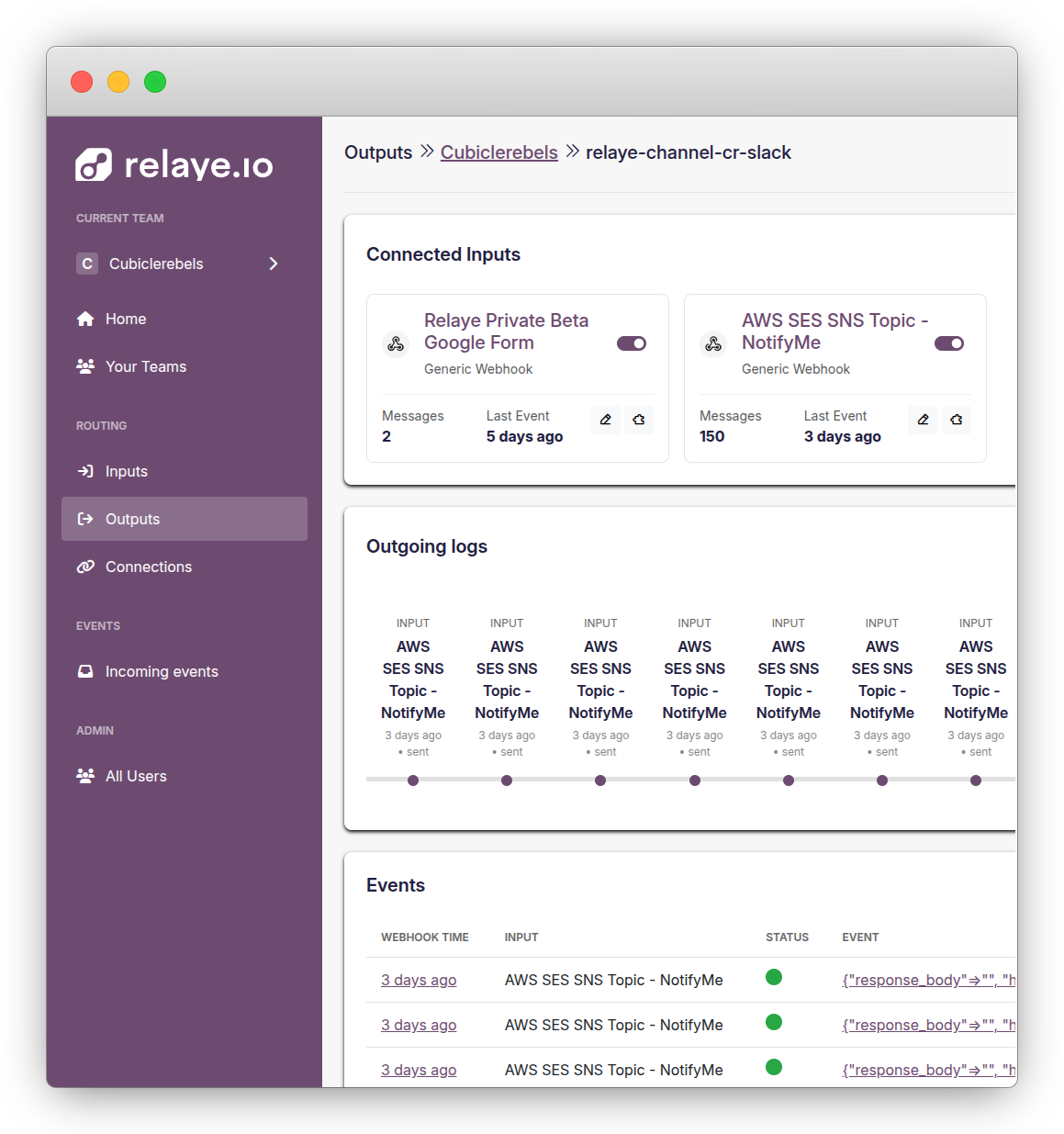
Viewing Output Details
Click on an output to view its details, including:
- Configuration information
- Connected inputs
- Recent outgoing notifications
- Output status
Testing Outputs
You can test an output to verify it's correctly configured:
- Go to the output's details page
- Click Test
- Relaye will send a test notification to the output
- Check the destination to confirm receipt
This is a quick way to verify your output configuration without having to trigger an actual input.
Editing Outputs
You can edit an output's name and configuration at any time. To edit an output:
- Go to the output's details page
- Click Edit
- Make your changes
- Save
Warning
Changing output configuration may affect notification delivery. Test the output after making changes.
Deleting Outputs
To delete an output:
- Go to the output's details page
- Click Delete
- Confirm the deletion
Danger
Deleting an output will permanently remove it and break any connections using it. Make sure to update any affected connections before deleting an output.
Connecting Outputs to Inputs
Outputs by themselves don't receive notifications. You need to connect them to one or more inputs to define what notifications they should receive. This is done through the Connections feature.
Monitoring Output Activity
Each output has an activity log that shows all outgoing notifications. This log includes:
- Timestamp of the notification
- Source input
- Delivery status
- Error messages (if any)
You can view this log by clicking on an output and navigating to the "Outgoing Logs" section.
Best Practices
- Use descriptive names for your outputs
- Create separate outputs for different notification priorities or teams
- Regularly test outputs to ensure they're working correctly
- Check the activity logs for failed deliveries
- Consider having backup outputs for critical notifications
- Use templates to format notifications appropriately for each output type